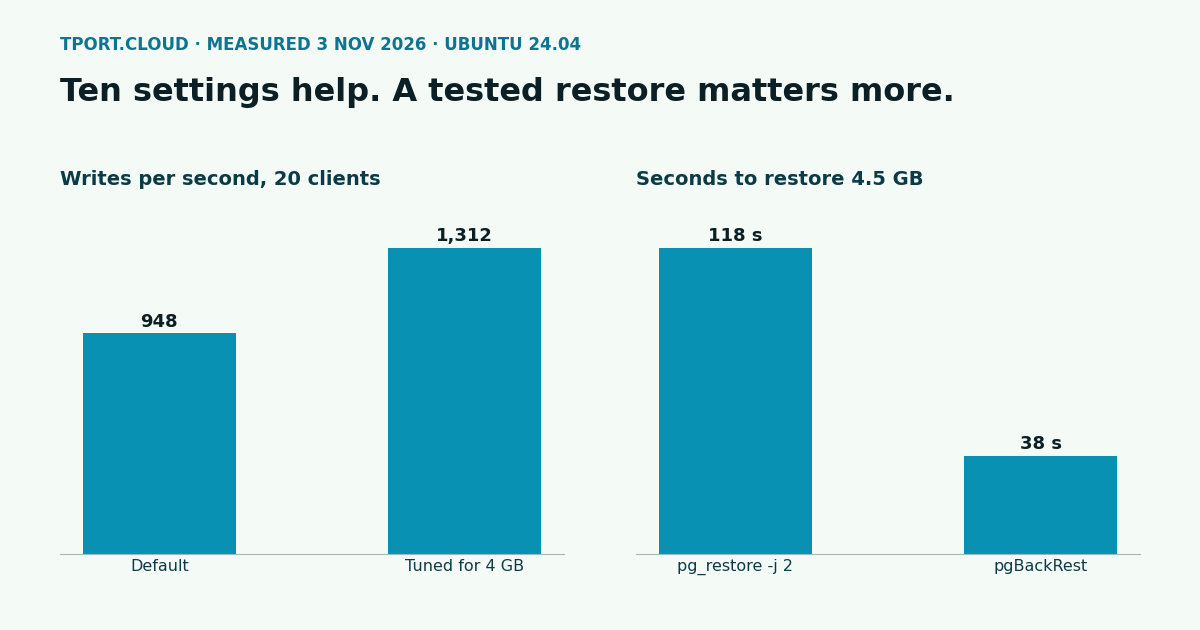
PostgreSQL 18 goes on a clean Ubuntu 24.04 server in about a minute and uses about 125 MB of memory. Then comes the part that decides whether you sleep well: who can connect, how it's tuned, and whether you've ever restored a backup. Ten settings gave us 38% more writes per second, and pgBackRest brought back a 4.5 GB database in 38 seconds.
We ran every command here on 3 November 2026, on a clean Ubuntu 24.04 server with 2 vCPU and 4 GB of memory, its disk capped at 3,000 IOPS and 150 MB/s, plus a second server as the remote client. Versions: PostgreSQL 18.6 and pgBackRest 2.60.
What it costs
| Measure | Result |
|---|---|
| Add the PostgreSQL apt repository | 32 s |
Install postgresql-18 | 25 s |
| Memory in use, before and after | 375 MB to 500 MB |
| Disk in use, before and after | 1,653 MB to 2,173 MB |
Step 1: install from the PostgreSQL repository
Ubuntu 24.04's own packages stop at PostgreSQL 16. The project's repository has 18, and its helper script adds the repository and signing key for you:
Out of the box it listens on localhost only, passwords use scram-sha-256, and TLS is on with a self-signed certificate. That's a safe start. If your app runs on this server, you can skip step 2.
Step 2: let one other machine connect, over TLS only
Three layers have to agree: PostgreSQL has to listen, pg_hba.conf has to allow the login, and the firewall has to allow the address. Replace 192.168.79.2 with your app server's address:
hostssl is the important word: it refuses the same login without TLS. Now try it from the other machine, including the ways that should fail. Here's what each attempt did for us:
| Attempt | Result |
|---|---|
sslmode=require, right password | Connected: t, TLSv1.3 |
sslmode=disable | FATAL: no pg_hba.conf entry for host |
sslmode=require, wrong password | FATAL: password authentication failed |
sslmode=verify-full | Refused by the client, as it has no root certificate to check against |
| Firewall rule removed | timeout expired |
That verify-full line matters. require encrypts the connection but doesn't check who's answering, because Ubuntu's certificate is self-signed. On a network you don't control, install a certificate for the server's name and connect with verify-full.
Step 3: tune it for your memory
The defaults are written to start on almost anything. Put your settings in their own file, so package updates never touch them. This is for 4 GB:
| Setting | Default | For 4 GB | How to size it |
|---|---|---|---|
shared_buffers | 128 MB | 1 GB | About 25% of memory. Needs a restart |
effective_cache_size | 4 GB | 3 GB | About 75% of memory. A planner hint, allocates nothing |
work_mem | 4 MB | 16 MB | Per sort or hash, and one query can use several, so multiply by your busy connections before raising it |
maintenance_work_mem | 64 MB | 256 MB | Index builds and vacuum |
max_wal_size | 1 GB | 4 GB | Fewer forced checkpoints, but needs that much free disk and makes crash recovery longer |
min_wal_size | 80 MB | 1 GB | Keeps WAL files for reuse |
checkpoint_completion_target | 0.9 | 0.9 | Already right, listed so nobody lowers it |
random_page_cost | 4 | 1.1 | For SSD and NVMe disks |
effective_io_concurrency | 16 | 200 | For SSD and NVMe disks |
wal_compression | off | zstd | Less WAL for a little CPU |
We measured these with pgbench at scale 300 (a 4.5 GB database, slightly bigger than memory), 20 clients on the server itself, 90 seconds a run, 3 runs of each:
| Test | Default, median (range) | Tuned, median (range) | Change |
|---|---|---|---|
| Read and write, transactions a second | 948 (902 to 1,014) | 1,312 (1,304 to 1,853) | +38% |
| Read only, transactions a second | 2,140 (1,759 to 2,285) | 2,370 (1,875 to 2,602) | +11% |
| Checkpoints forced by WAL during those runs | 16 | 1 |
That last row explains most of the first. With max_wal_size at 1 GB, this write load filled the WAL again and again and forced a checkpoint each time. An earlier full run of the same test agreed, at 971 and 1,463 writes a second. The first read run in each set was the slowest because the cache was still cold. Your numbers will differ, and pgbench's small transactions are not your app. If your load is mostly reads on data that fits in memory, expect little from these settings.
For another size, keep the same rules for the first two lines and scale work_mem and maintenance_work_mem with memory. We only measured 4 GB.
Step 4: simple backups with pg_dump
pg_dump is enough for many small apps. It writes one file that you can restore on this server or on a newer PostgreSQL.
| Step, 4.5 GB database with 30 million rows | Time |
|---|---|
pg_dump -Fc | 49 s |
pg_restore, one job | 142 s |
pg_restore -j 2 | 118 s |
The dump came to 97 MB, far below what real data will give, because pgbench's rows are nearly all the same. The weakness is that you lose everything since the last dump, so a nightly dump can cost you a day of data.
Step 5: pgBackRest, for any point in time
pgBackRest copies the database files and keeps every change in between, so you can go back to a chosen second. The first thing that failed for us: the config folder it looks in doesn't exist after install, and every command then says does this stanza exist?, which sends you looking in the wrong place. Create the folder first:
This repository is on the same disk as your database, so it won't survive losing the server. Copy /var/lib/pgbackrest to another machine, or point the repository at object storage. We ran the backups by hand here. To run them on a schedule, call the same commands from cron as the postgres user, say a full backup weekly and --type=incr daily.
Restore to a moment
We wrote a row, noted the time, wrote a second row, then went back to the noted time:
Only before-pit came back, which is the proof that it worked. Take a new full backup after a restore like this, as the server is now on a new history.
Restore after losing the data folder
| pgBackRest step, 4.5 GB database | Result |
|---|---|
| Full backup | 35 s, 254 MB stored |
| Incremental backup, after 30 s of writes | 46 s, 252 MB stored |
| Backup folder in total, with WAL | 543 MB |
Restore to a moment, --delta, until accepting writes | 19 s |
| Restore into an empty folder, until accepting writes | 38 s |
pgbench updates rows all over its tables, so the incremental backup here was nearly as big as the full one. On an app where a small share of the data changes, it should be much smaller. The small sizes also come from pgbench's repetitive rows, so don't plan your disk from them. Restore time grows with your data, so time your own. A backup you've never restored is only a hope.
Which of our servers can run this
| Server | Fit |
|---|---|
| $20 a month and up | All of it, including remote connections from step 2 |
| Under $20 | Everything installs and runs, and we measured on the same size as our $5 server. Port 5432 isn't reachable from outside, so keep your app on the same server, or connect through an SSH tunnel on the SSH port the console shows you |
Lots of short-lived connections? Each one costs a process on the server, so read PgBouncer on Ubuntu 24.04 next. New server? Start with SSH, ufw and fail2ban.
Sources
Our own runs on Ubuntu 24.04, 3 November 2026, under QEMU/KVM with kernel 6.8.0-147: PostgreSQL 18.6 from the PostgreSQL apt repository, pgBackRest 2.60.0, pgbench at scale 300. Docs: PostgreSQL apt repository, pg_hba.conf, resource settings, WAL settings, pgBackRest user guide.
Pick PostgreSQL in the installs when you order, and you get version 18 or 17 on localhost, with an app role and database ready.
See the servers